Rewards — How It Works
Thanks for shopping with The Whiskey Wrangler Mercantile! Here's everything you need to know about earning and using your rewards points.
Earning points
You earn points on every purchase — it doesn't matter if you shop online or in the store. Your points balance is the same either way, so a purchase you make in person adds to the same balance as an online order.
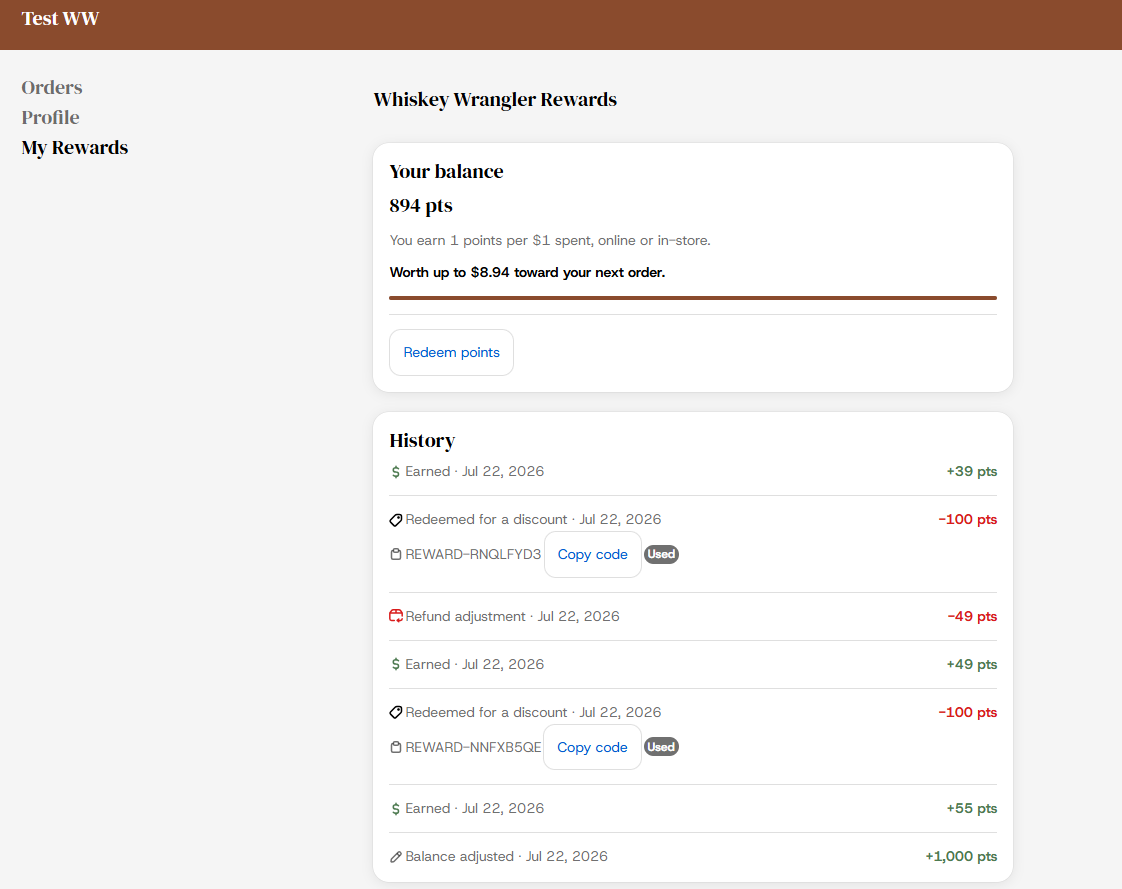
Your My Rewards page always shows the current rate (e.g. "You earn 1 point per $1 spent") right under your balance, so you don't need to remember it or dig for it.
Every so often the store may run a bonus-points promotion (e.g. "double points" for a weekend). If one's running, you'll see a banner right at the top of My Rewards telling you the bonus rate and when it ends — your balance and the rate shown always reflect whatever's actually in effect, no need to do anything to get the bonus.
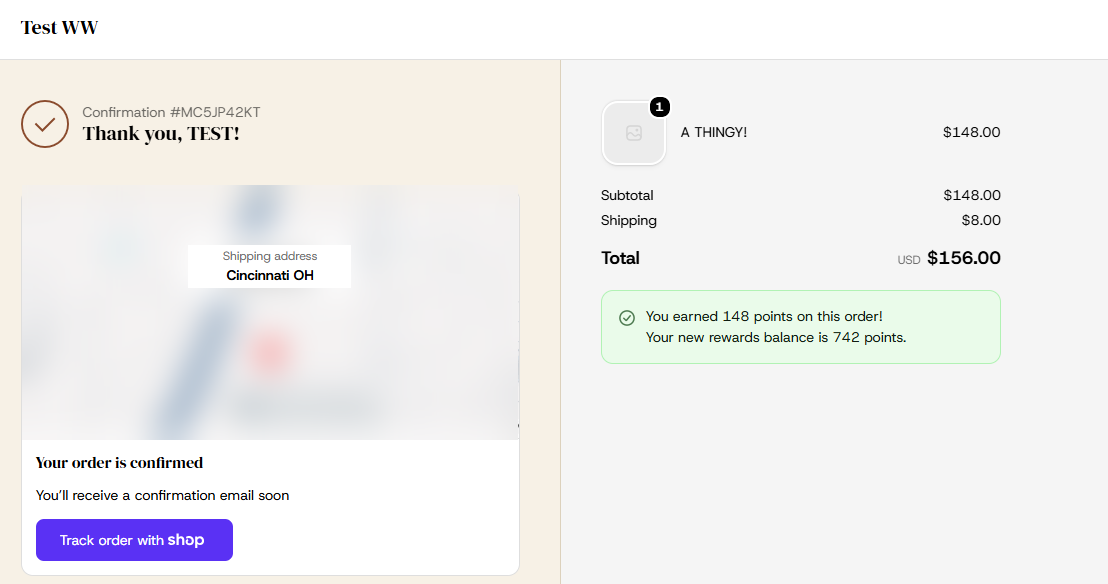
Right after an online order, the order confirmation page shows exactly how many points that order earned and what your new balance is — and the same information shows again later if you revisit that order from your account's Order status page.
Checking your balance
- Log in to your account at thewhiskeywranglermercantile.com
- Click My Rewards in your account's navigation menu — that's the one place for your balance, redeeming, and history.
Redeeming your points
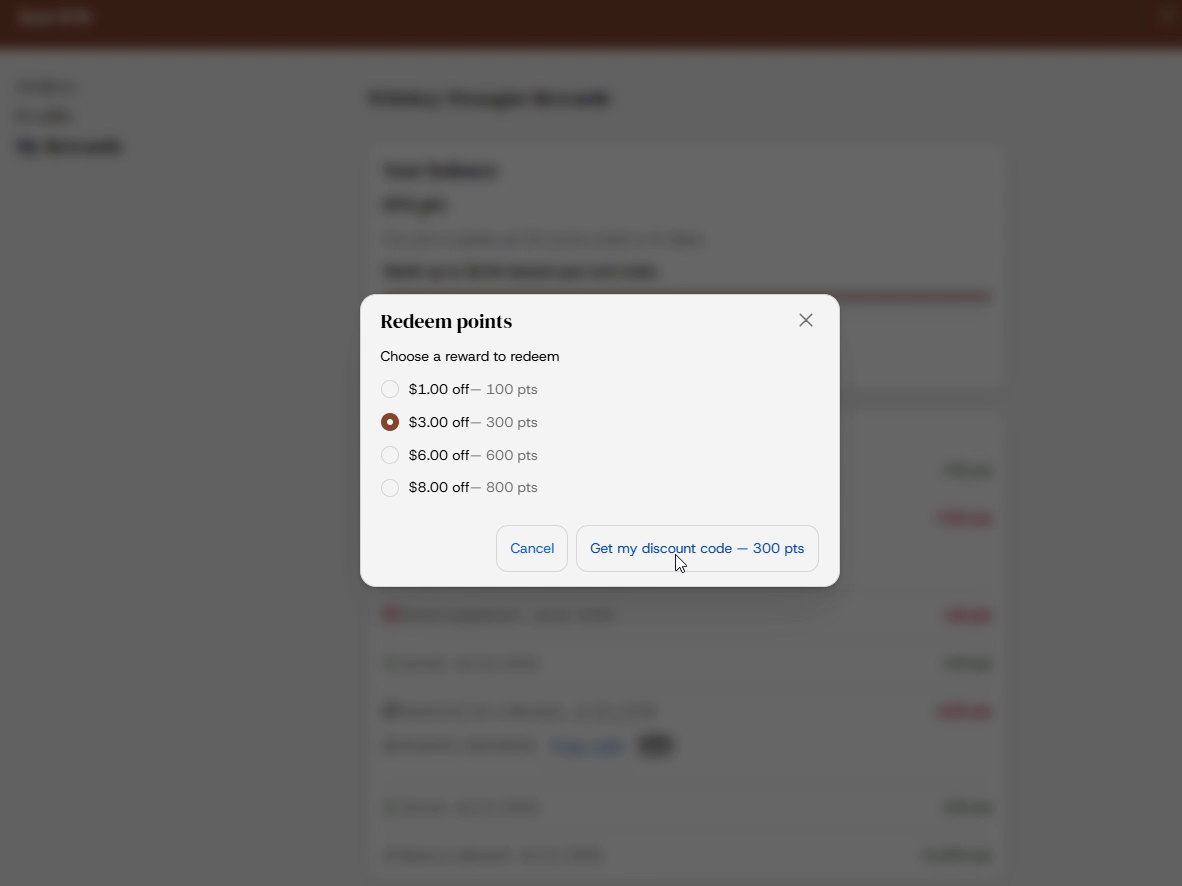
Once you have enough points, tap Redeem points on My Rewards to open the redemption screen. You'll see every reward you can currently afford in one list, cheapest first — each cash discount is labeled with its dollar value and points cost (e.g. "$1.00 off — 100 points"), alongside any other perks the store offers, like free shipping. Pick one and tap the button at the bottom, which shows exactly how many points it'll cost before you confirm.
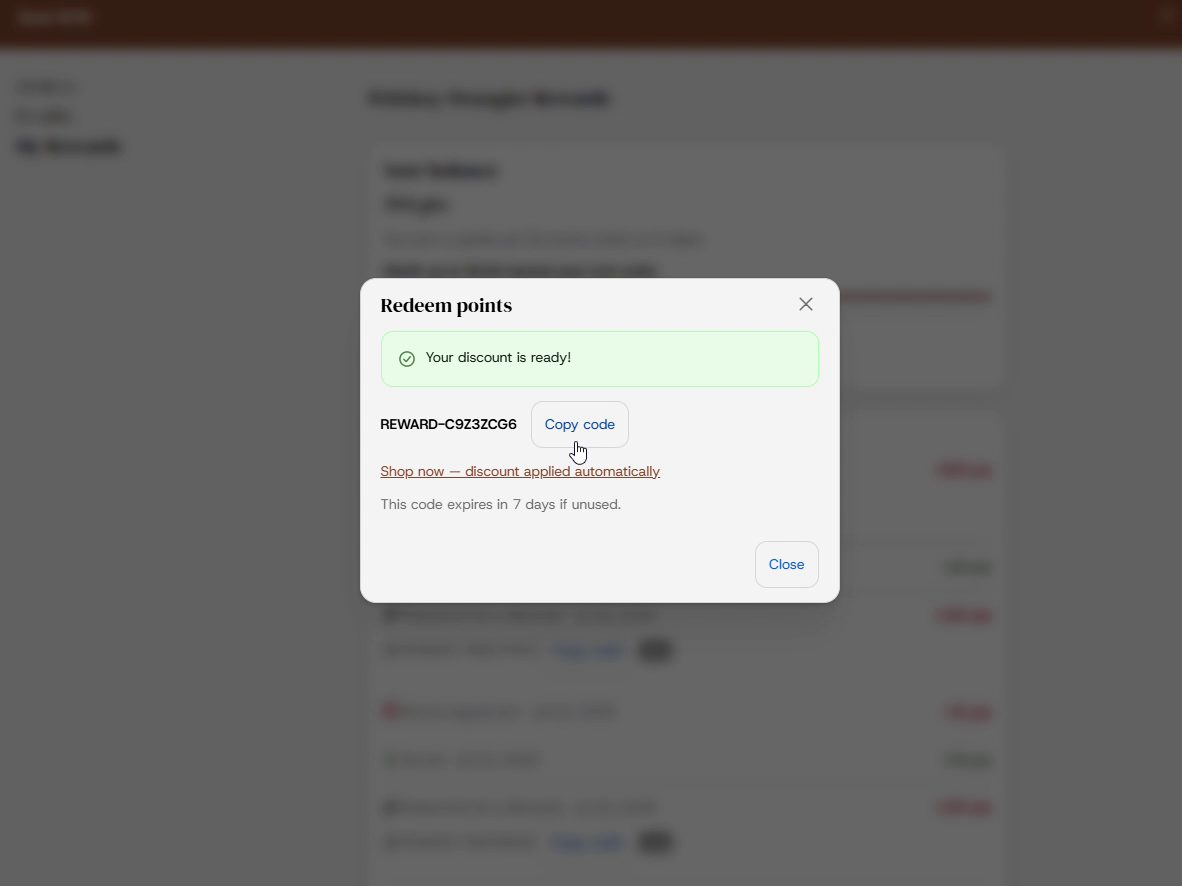
You'll get a one-time discount code immediately.
Using your discount code
Once you have a code, you don't have to copy or type anything by hand:
- Tap Copy code to put it on your clipboard, or
- Tap Shop now to apply it automatically and go straight to your cart — no code entry needed.
Otherwise, your code works two ways:
- Shopping online: enter the code in the discount box at checkout.
- Shopping in-store: just let a team member know you'd like to redeem your rewards — they can look up your balance and apply it for you right at checkout. You don't need to have the code written down; they can pull it up themselves.
A few things to know about your code:
- It's tied to your account — no one else can use it, even if it gets shared by accident.
- It's good for one use only.
- It expires after a set number of days if unused — the exact number is shown right on the screen when you redeem, so you'll always know.
- Lost the code? It's not gone — open History and you'll find it again next to your most recent redemptions, with its own copy button.
Viewing your history
Tap History on My Rewards to see a list of your recent activity — points earned, points redeemed (and for what), and any adjustments, each with a date. Your last few redemption codes show a copy button and, once you've used one, a Used label — older codes just show the code itself for your records, without the copy button, since by then they've likely expired anyway.
If something looks off
If your balance doesn't look right — say, a recent purchase didn't add points, or a return didn't remove points as expected — check your History first, then reach out to the store directly if it still doesn't add up. Every point earned, spent, or adjusted is recorded, so staff can look up exactly what happened with your account and sort it out.
Birthday bonus
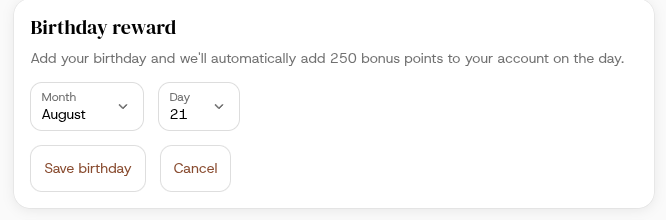
If the store's turned this on, you can add your birthday from the My Rewards page — just the month and day, we don't ask for (or keep) your birth year. Once it's saved, you'll automatically get bonus points added to your account on the day, no need to do anything else or come back to claim it. It only happens once a year per birthday.
Opting out
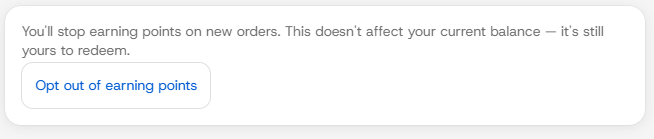
Don't want to earn points anymore? At the bottom of My Rewards, there's an Opt out of earning points button. Using it:
- Stops you from earning points on future orders.
- Does not touch any points you've already earned — your existing balance stays exactly as it is, and you can still redeem it whenever you want.
- Is fully reversible — the same spot has an Opt back in button whenever you change your mind, no waiting period.
A couple of good-to-knows
- Refunds: if you return an item, the points you earned on that portion of the purchase are removed. A full refund removes all the points from that order; a partial refund removes a proportional share.
- Minimum redemption: you'll need a minimum number of points before the redeem option appears. Until then, My Rewards tells you exactly how many more points you need — no guessing.